Book a shoot and get the contract signed
Turn an enquiry that said yes into a booking, send a contract with the client's details already filled in, and see the moment they sign it.
3 things to set up · about 6 minutes all up
Skip to the setup ↓Enquiry to signed contract: the 31-second overview.
What this does
When an enquiry says yes, you shouldn’t have to retype their name and date into a booking, then again into a contract. Convert the lead and the booking takes its details. Draft a contract from that booking and the client is already filled in.
The contract starts from a plain template that you edit into your own terms. The client gets a private link, reads the contract and signs by typing their name, with no account needed. Once they sign, the wording they agreed to is locked and kept with a record of who signed and when. You can see whether they’ve signed without having to ask.
Set it up
Step 1 of 3 · 2 min
Turn the enquiry into a booking
A lead that's said yes becomes a client and a booking, with their name, contact details, and event date already carried across.
- Open the enquiry in Leads and find Convert to client. Their name is already filled in, and Also create a booking for them is ticked. Open Leads
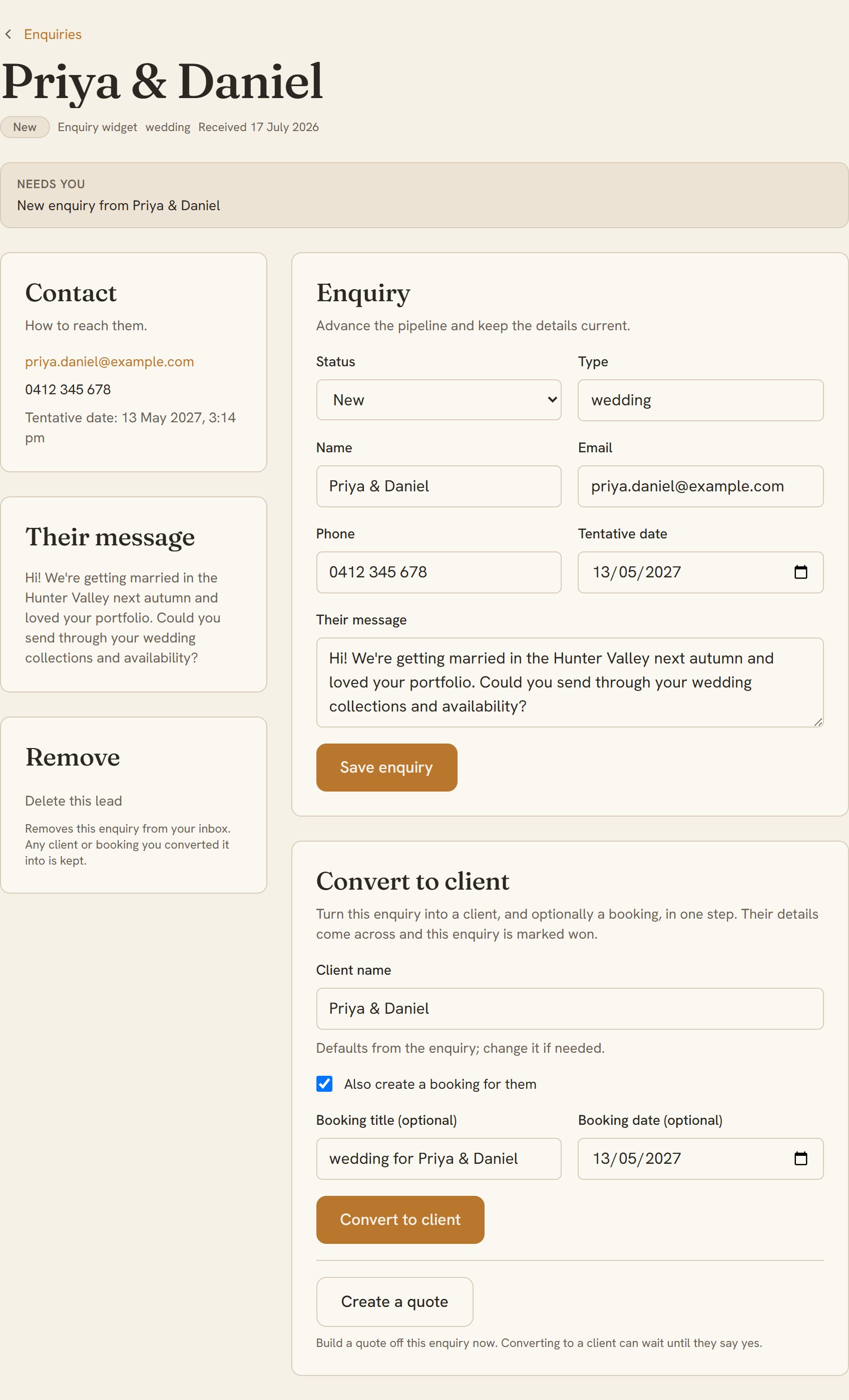
- Now test it. Leave the booking checkbox ticked and convert. The enquiry is marked won, a client is created (their email and phone come from the enquiry), and a booking appears with the shoot type and date already set from what they told you.
Step 2 of 3 · 3 min
Send the contract
A contract in the client's hands, in your own words, waiting on their signature.
- From the booking, click Draft contract. The title and client are already filled in, and the agreement text starts from a plain starter template covering services, fees, cancellation, and image usage. Open contracts
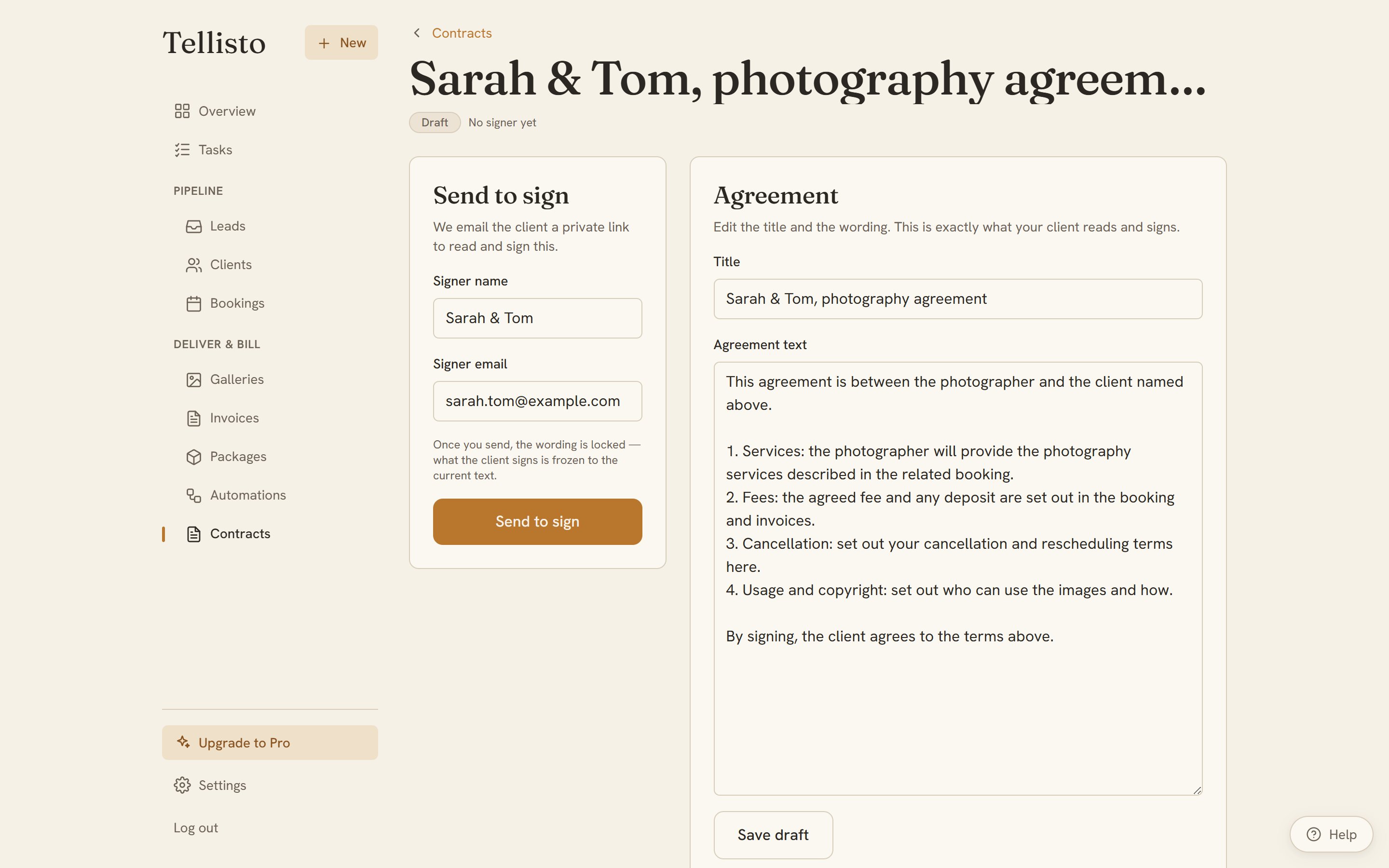
- Put it in your own words. You can keep editing the text right up until you send it; once sent, the wording that goes to the client is locked in.
- Now test it. Fill in the signer's name and email and send. Tellisto emails them a private link to read and sign, no login required on their end.
Step 3 of 3 · 1 min
Know where it's at
You can see at a glance whether a contract is still waiting or already signed, without chasing anyone.
- Open the contract and you'll see its status: draft, sent and awaiting signature, or signed. Once it's sent, the client's sign link is shown there too, in case the email needs resending. Open your contracts
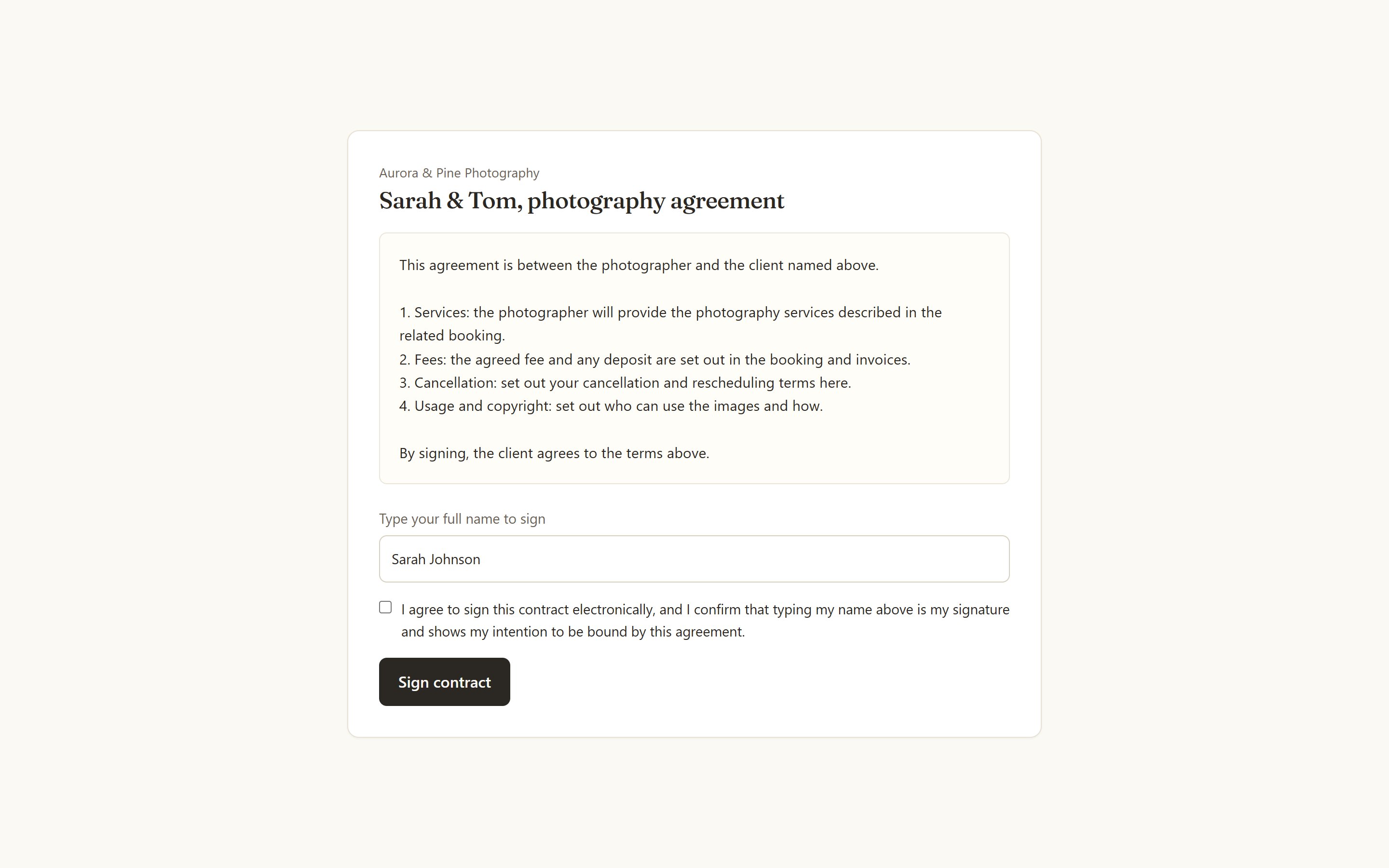
- Now test it. Open the sign link yourself the way your client would, type a name, tick the consent box, and sign. The contract changes to signed, and Tellisto keeps a record of who signed, when, and from what IP address.