Send invoices with GST worked out and get paid
Add your ABN or NZBN and your payment details, then send an invoice that works out GST for you. Mark it paid once the money reaches your account.
3 things to set up · about 7 minutes all up
Skip to the setup ↓From delivered shoot to money in the bank: the 31-second overview.
What this does
An invoice from Tellisto carries your ABN or NZBN and works out GST on every line if you’re registered. It also shows your client how to pay you: PayID or bank transfer for free, or card if you’ve connected Stripe. You never touch a spreadsheet or a tax calculation.
Sending an invoice does not mark it paid. A card payment marks the invoice paid by itself. For PayID or a bank transfer, you record the payment with one click once it reaches your account. Each step below ends with a quick test. Before you send a real invoice, you’ll have sent yourself one, opened it as a client would, and marked it paid.
Set it up
Step 1 of 3 · 2 min
Set up GST and your business details
Your ABN or NZBN on file, GST registration set correctly, and your bank or PayID details ready to appear on every invoice.
- In Tellisto, go to Settings → Payments & tax. Add your ABN or NZBN first: an AU ABN is checked against the Australian Business Register, which sets your GST registration automatically. Open payments & tax
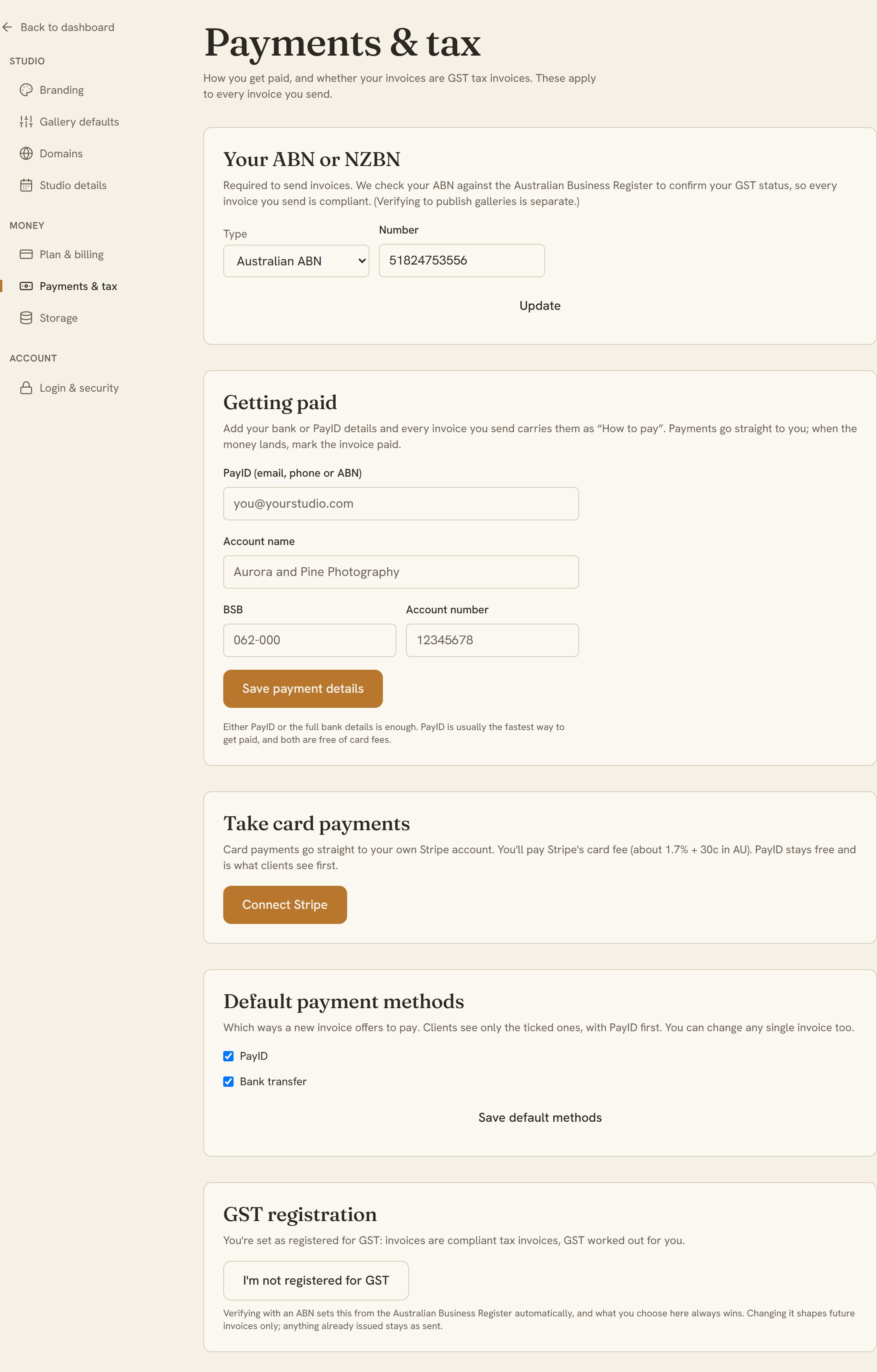
- Not registered for GST yet? Leave the toggle on not registered and invoices go out as plain invoices with no GST. Registered? Switch it on and every invoice becomes a proper tax invoice with GST worked out on each line.
- Add your PayID or bank details under Getting paid. Either one is enough, and both appear under “How to pay” on every invoice you send, with no card fees.
Step 2 of 3 · 3 min
Send your first invoice
An invoice sent, with the client and any linked shoot already attached and GST worked out for you.
- Best done from a booking or a client, not a blank page: open a booking or client and choose Create invoice. Their details carry across, and if it's from a booking, the first line fills in from the booking's total. Start an invoice
- On the invoice editor, add or adjust line items as you need. If you're registered for GST, each line shows its GST split and the invoice adds up to a subtotal, GST, and total; if you're not registered, it's a plain total with no GST line.
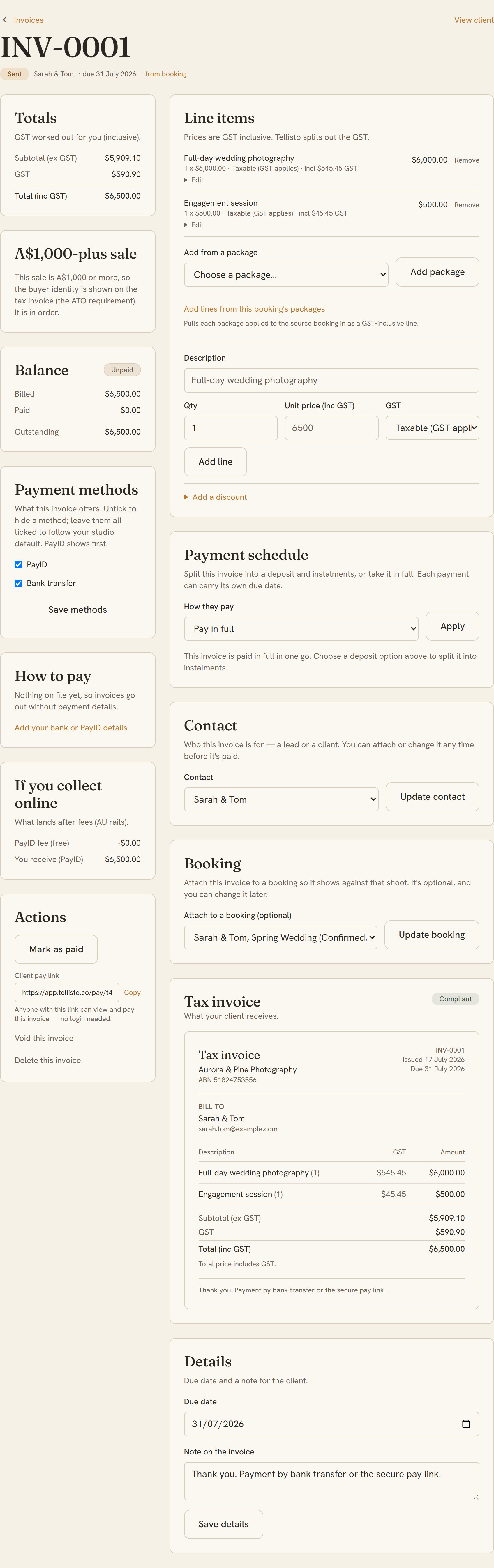
- When it's ready, hit Send. If your client has an email on file, Tellisto sends it and lets you know; either way you get a copyable pay link to send yourself.
Step 3 of 3 · 2 min
Record the payment
An invoice marked paid once the money reaches your account, and you've seen exactly what your client sees.
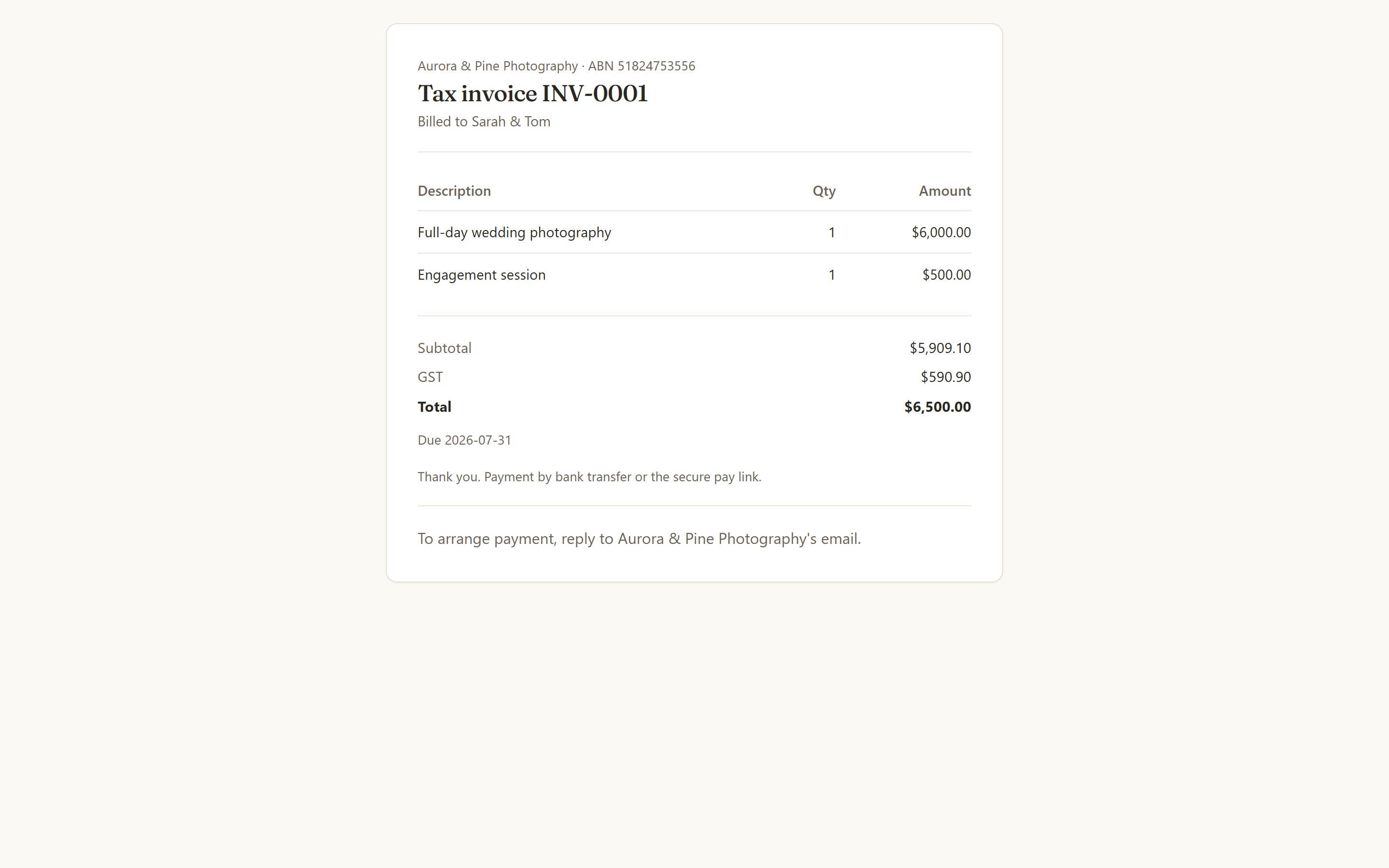
- Now test it. Send yourself a small test invoice, then open its pay link the way a client would: your studio's branding, the line items, the GST breakdown (if you're registered), the total, and how to pay by PayID, bank transfer, or card if you've connected Stripe.
- Back in the invoice, once the money reaches your account, use Mark as paid. It records a manual payment (bank transfer, PayID, or cash). Nothing is ever marked paid automatically just because it was sent. Open Invoices
The detail
How it behaves
This page is for the Australian or New Zealand photographer who wants to send a proper invoice. That means correct tax paperwork, GST handled for your situation, and a way for the client to pay that doesn’t take a commission off your work. By the end you’ll know what Tellisto needs from you, what goes on the invoice, and how a client pays it.
First, your business number
Before you can send an invoice, you add a business number: an ABN in Australia or an NZBN in New Zealand. A tax invoice has to name a real business, so this step isn’t optional. You only do it once.
If you enter an Australian ABN, Tellisto checks your GST registration status against the ABR (the public business register). Your invoices then come out right for your situation without you setting anything. If you’re registered for GST, the tax is calculated and shown on the invoice. If you’re not, GST is left off. Either way the invoice is correct from the first one you send.
Being registered for GST is separate from having an ABN. Plenty of photographers invoice legally without being registered for GST. Australia has a turnover threshold above which you have to register, and where you sit against it is a question for your accountant. Tellisto invoices correctly whether you’re registered or not. We don’t give tax advice about whether you should be.
What goes on the invoice
Every invoice you send is a proper tax invoice. GST is applied according to your registration status, not a flat guess. If you’re registered, the tax is shown separately on the invoice.
For commercial work, headshots and anything B2B, your client often needs their own ABN on the document. You can add the client’s ABN to the tax invoice so it works for their bookkeeping as well as yours.
Where the invoice comes from depends on the job. If it’s tied to a booking, the deposit and the balance roll into one total. The client sees the whole amount rather than two separate charges. If there’s no booking (a print sale, a walk-up, a quick licence), you can add a package from your catalogue to a new invoice and send it. To turn an enquiry into a confirmed booking and a first invoice in one step, see quotes and deposits.
How your client pays
The client gets a link, opens the invoice, and pays it from that page by PayID or bank transfer. The money goes from them to you directly. Tellisto takes no commission on any of it, on any plan.
Many platforms take a percentage of every sale. Your invoice money never passes through Tellisto, so there’s nothing for us to take a cut of. The full amount is yours.
If the client would rather pay a large job over time, an invoice can carry a scheduled instalment plan. Each instalment gets its own reminder, and the gallery releases automatically once the final one clears. That’s covered in payment plans.
Card, and when it’s worth it
Card is now a payment option, and you switch it on yourself rather than getting it by default. Connect your Stripe account in settings and card becomes available per invoice, so you decide job by job.
It’s a choice rather than a default because card is the only payment method with a cost, and you pay that cost. PayID and bank transfer take nothing out. What your client sends is what arrives in your account, usually within seconds, and the payer sees your studio’s name before they send. Card carries a processing fee. From 1 October 2026 the RBA ends card surcharging on eftpos, Visa and Mastercard, so that fee can’t be added back at checkout.
So don’t avoid card; price for it. Work out what card costs you on a typical job and build it into your rates, the way you already build in editing time and travel. Then card is a cost you’ve already covered rather than a bite out of the invoice. Every client who pays by PayID instead leaves you a little ahead. The studios that get caught out set their prices as if there were no fees, then add card later.
Once it’s priced in, offering card works in your favour. It closes jobs on the spot, and a deposit paid in ten seconds from a phone doesn’t get put off until tomorrow.
You don’t have to guess the difference. Before you choose, the invoice shows what you’d bank on card next to what you’d bank on PayID. Tellisto takes nothing either way, and card is no exception to the zero-commission pledge.
If you never connect Stripe, nothing changes. Card is never offered, and your invoices stay PayID and bank transfer.
Other invoicing tools
A few more things make everyday bookkeeping easier.
You can record a walk-in payment. When someone pays you in person, mark it against the invoice so your billed, paid and outstanding figures stay accurate. You can see what you’ve billed, what’s been paid and what’s still owing at a glance, without exporting a spreadsheet.
You also choose which payment methods to offer on each invoice, so a job that should be PayID-only can be exactly that.
At the end of the financial year, open Invoices and choose Tax summary. Pick the year you want, check the totals, then download the CSV. It’s a sales-invoice file that Xero accepts, so you or your accountant can import it instead of typing everything in. The summary counts money when it arrives. Invoices you’ve issued but haven’t been paid for are listed separately, and so is anything you numbered but never sent. The invoicing feature page sets out the whole feature if you want to see it before you start.
Frequently asked questions
Quick answers
Do I need an ABN to send an invoice?
Yes. A tax invoice has to name a real business, so you need your ABN in Australia or your NZBN in New Zealand to send one. Add it once and every invoice you send is correct from the first one.
Do I need to be registered for GST to invoice through Tellisto?
No. You need a business number, but GST registration is a separate question. An unregistered sole trader can invoice properly today and switch GST on the day they register. Australia has a turnover threshold above which registration is required. Where you sit against it is a question for your accountant, not for us.
Can my clients pay by credit card?
Yes, once you've connected Stripe. You then switch card on per invoice rather than having it on by default, because card is the only payment method that costs you anything. The processing fee comes out of your side. From 1 October 2026 the RBA ends card surcharging on eftpos, Visa and Mastercard, so you can't add the fee back at checkout. Price it into your rates and the cost is already covered. PayID and bank transfer stay free and stay the default.
Does Tellisto take a cut of my invoices?
No. Zero commission, on every plan, always. The money moves straight from your client to you by PayID or bank transfer and never passes through us.
What is PayID?
PayID is the Australian system for paying to a simple identifier like a phone number, email or ABN, instead of a BSB and account number. Transfers usually arrive in seconds. The payer sees your registered name before they confirm, so they know the money is going to the right studio.
Keep going