Moving from 17hats: export your data and switch
Export your contacts and sales history from 17hats while your subscription is active, save the projects you need, then set up your work in Tellisto.
3 things to set up · about 43 minutes all up
Skip to the setup ↓The safe order for moving across, in 36 seconds.
What this does
17hats exports your contacts as a CSV and your paid-invoice history as a sales report. That’s where the bulk exports stop. Projects, contracts, quotes and questionnaires all have to be saved one at a time. Email templates and workflows don’t export at all, so you copy those out by hand.
The guide works in this order: get everything out of 17hats, set up your current work in Tellisto, then cancel. You don’t need to save every project you’ve ever run, just the ones you’d go back to. Your saved files are the archive, and Tellisto starts with the jobs you have on now.
Set it up
These steps describe 17hats as it was in July 2026. Please check their current help pages before you cancel, downgrade or delete anything.
Step 1 of 3 · 25 min
Get everything out of 17hats
Your contacts, sales history and the project paperwork you'll need again, saved to your own computer.
- Start with your contacts. Open the Contacts page (or Leads, if you keep those separate), click the gear icon top right, and choose Export Contacts. You can filter by contact type or tag first if you only want part of the list, say Hot Leads or Clients; leave it unfiltered for everything. A CSV downloads straight away.
- Export your payment history for your accountant. Go to Bookkeeping → Reports, open Client Sales or Product Sales, set the date range to cover your whole account, and export as CSV. One gotcha: this report only lists invoices that are fully paid, so anything partially paid won't show up. Note those separately if they matter.
- 17hats has no bulk export for projects, so each project's documents, emails and time logs are saved one at a time. Don't try to save everything. Work back through your projects from the last year or so, and save or print to PDF the things you'd reach for again (a signed contract, a final invoice). Older projects that are long closed and paid are already covered by your sales report.
- Do the same for any contracts, quotes, or questionnaires tied to current or recent clients: open each one and use its save or print-to-PDF option. There's no batch tool for these either, so this is where the time goes.
- Copy out any email templates or workflow text you want to keep. 17hats doesn't export these, so open each one you actually use and paste it into a document. A handful is normal; skip the ones you never send.
- Don't cancel yet. 17hats keeps your data live only while your subscription is active, and can delete it as soon as 45 days after you cancel. Check every file opens properly before you touch your subscription.
Step 2 of 3 · 15 min
Set up your active work in Tellisto
Your current clients, open leads and upcoming shoots set up in Tellisto and ready to use.
- Import the contacts file you just exported. In Tellisto, open Clients → Import, choose Spreadsheet / other as the source, check the columns line up, look over the preview and confirm. Names, emails and phone numbers come across in one go. Only contacts are imported, so bookings and invoices stay in your export files. Import contacts
- Then add your open leads: anyone you've quoted or are still talking to. Put the gist of the conversation in the enquiry detail so the thread isn't lost. Add a lead
- Create your upcoming shoots as bookings. Pick the client you just added, set the date and location, and the deposit and total if there's money attached. Tellisto carries the client's details across, so there's no re-typing. Add a booking
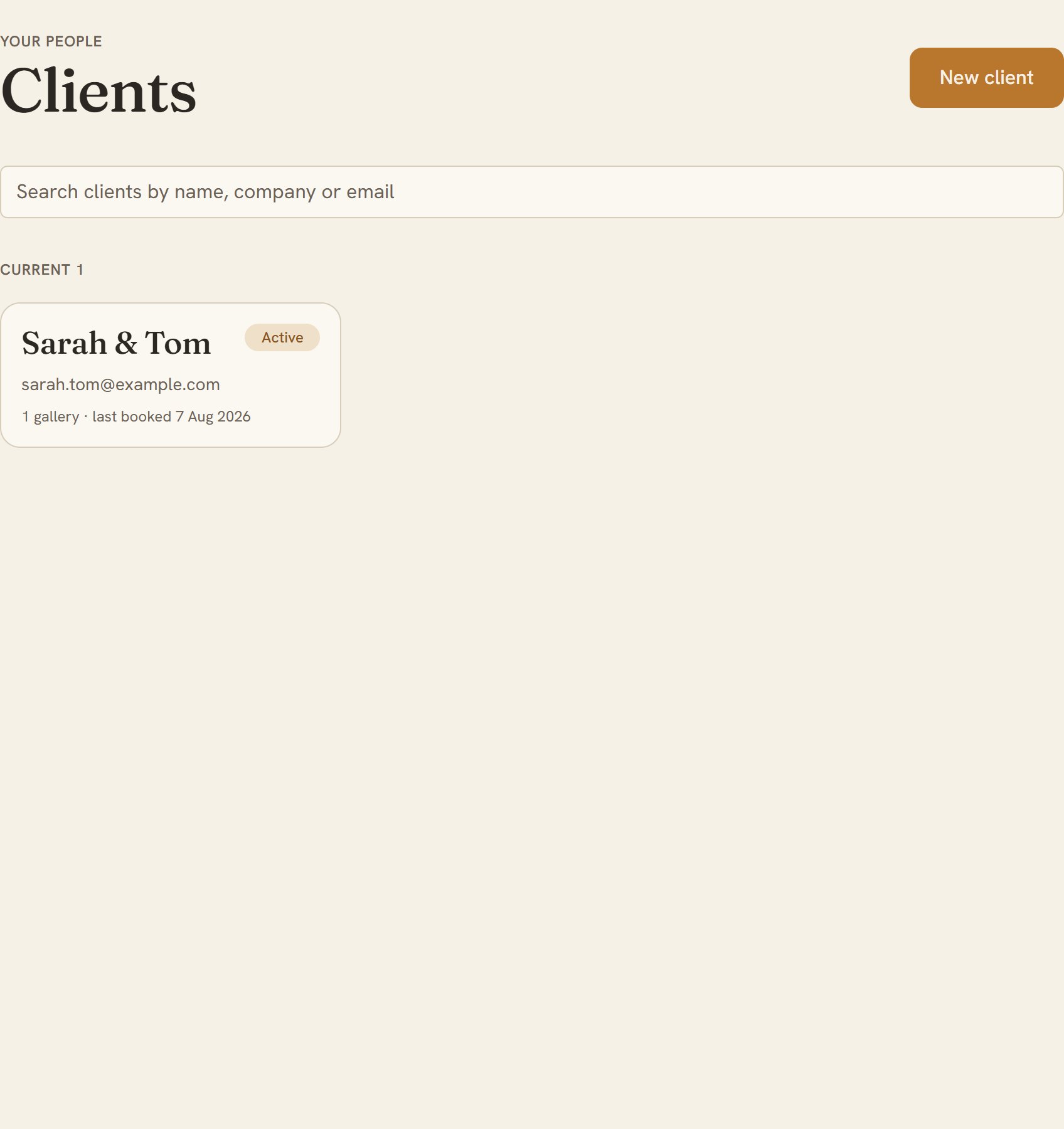
- Now check it. Open your Clients list and look for everyone you're working with this month, each with an email or phone number. From today, that list is the one you work from. Open your Clients list
Step 3 of 3 · 3 min
Keep the archive, then cancel
Your full history saved in your own storage, and your 17hats subscription cancelled.
- Put the contacts CSV, the sales report, and every PDF you saved somewhere safe: your backup drive, Google Drive, Dropbox. You'll rarely open them, but the day you need a 2023 contract, you'll have it.
- Cancel 17hats from Account Settings → Plan Information, scrolling to the bottom for Cancel Account. If you're on Linked Brands, cancel from the Main Brand account. You already have everything out, so the timing doesn't matter.