Switching from HoneyBook: export your data first
Export your contacts, financial reports and signed contracts from HoneyBook before you cancel, then set up the jobs you have on now in Tellisto.
3 things to set up · about 48 minutes all up
Skip to the setup ↓The safe order for moving across, in 36 seconds.
What this does
HoneyBook exports your contacts as a CSV in one click. Its Reports screen exports financial reports (payments, sales and more) as CSV, though several report types need a higher plan or only work on desktop. Signed contracts and invoices come out one at a time, as a PDF from inside each project, with no bulk download. Email templates have no export at all, so you copy those out by hand.
The guide works in this order: get everything out of HoneyBook, set up your current work in Tellisto, then cancel. You don’t need to move your whole history into Tellisto on day one. Your exported files are the archive, and Tellisto starts with the jobs you have on now. If you cancel before you’ve exported everything, HoneyBook is more forgiving than most platforms: it keeps your existing projects and information in place rather than deleting them. Full removal still needs an email to their support team, though, so don’t treat that as a safety net. Export first either way.
Set it up
These steps describe HoneyBook as it was in July 2026. Please check their current help pages before you cancel, downgrade or delete anything.
Step 1 of 3 · 30 min
Get everything out of HoneyBook
Your contacts, financial reports and the contracts and invoices you'll need again, saved to your own computer before you touch your subscription.
- Export your contacts first. Go to Clients → Contacts, click the ⋮ menu, and choose Download spreadsheet. A CSV downloads with names, emails, phone numbers, addresses, and any notes you've kept on them.
- Pull your financial reports next. Go to Reports (or Finance → Reports if your account has the newer menu) and click Download reports. Pick a timeframe and a report type; start with Payments Completed and Monthly Sales. Several report types only work on desktop, and some (Clients, Team Members, Lead Generation) need a higher plan. Download whatever your plan gives you.
- HoneyBook won't bulk-export signed contracts or invoices, so pick what matters rather than saving everything at once. For your active jobs and anything from the last few months, open the project, open the file, click ⋮ and View published file, then ⋮ again and Download as PDF. Allow about two minutes per project. The 30 minutes above assumes half a dozen or so active jobs, so allow more if you have more open. Older, closed work only needs this if you can see yourself needing it again.
- Copy out any email templates you actually use. HoneyBook has no export for templates, so open each one and paste the text into a document. Most photographers only ever send from a handful; skip the ones you no longer use.
- Don't cancel yet. HoneyBook is more forgiving than most here: cancelling keeps your existing projects and information in place, and you just lose the ability to create new ones or send messages. But full deletion still needs an email to their support team, and that's a bad time to discover a contract you didn't download. Check your exports before you touch your subscription.
Step 2 of 3 · 15 min
Set up your active work in Tellisto
Your current clients, open leads and upcoming shoots set up in Tellisto and ready to use.
- Import the contacts file you just exported. In Tellisto, open Clients → Import, choose HoneyBook as the source, check the columns line up, look over the preview and confirm. Names, emails and phone numbers come across in one go. Only contacts are imported, so bookings and invoices stay in your export files. Import contacts
- Then add your open leads: anyone you've quoted or are still talking to. Put the gist of the conversation in the enquiry detail so the thread isn't lost. Add a lead
- Create your upcoming shoots as bookings. Pick the client you just added, set the date and location, and the deposit and total if there's money attached. Tellisto carries the client's details across, so there's no re-typing. Add a booking
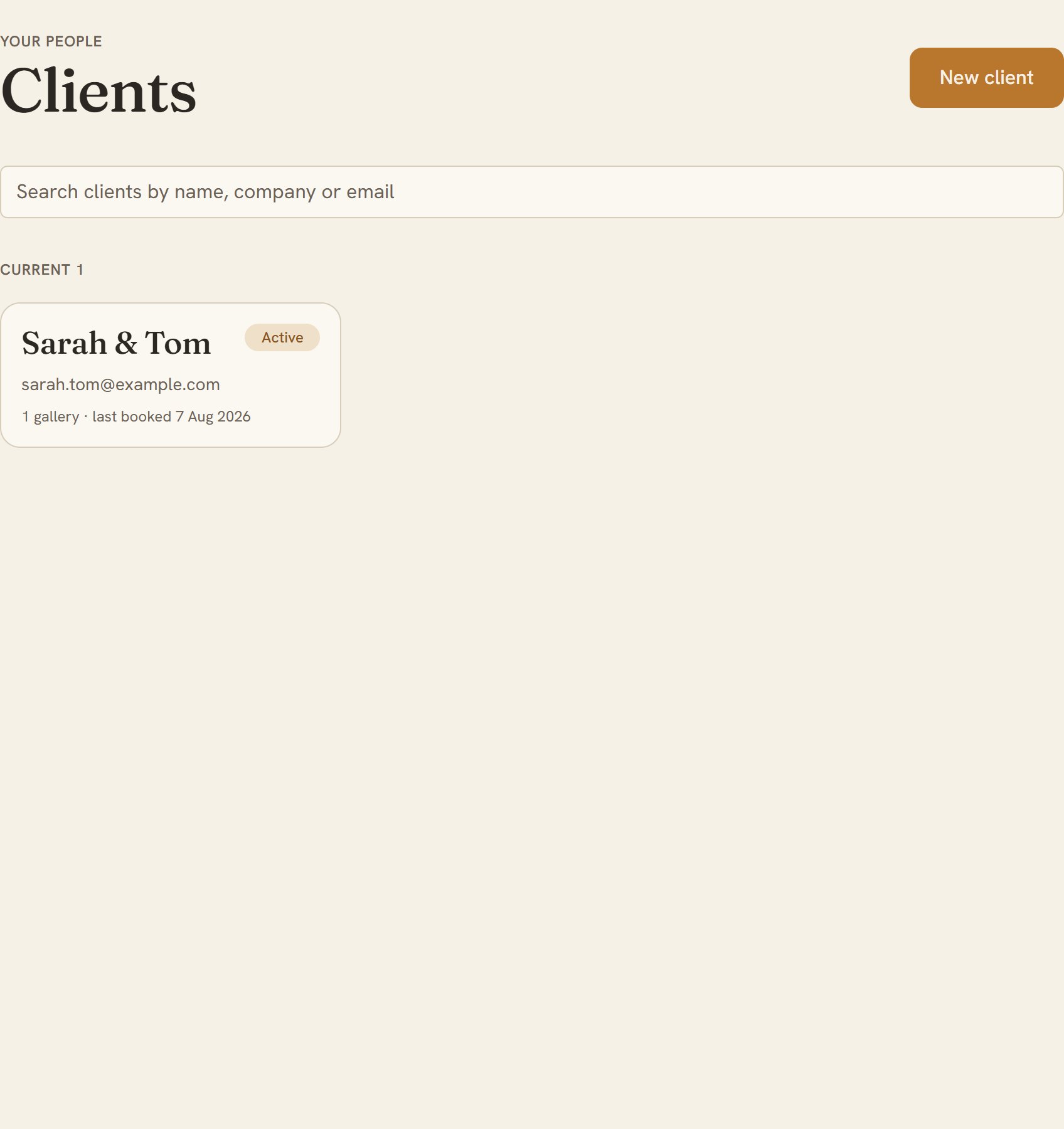
- Now check it. Open your Clients list and look for everyone you're working with this month, each with an email or phone number. From today, that list is the one you work from. Open your Clients list
Step 3 of 3 · 3 min
Keep the archive, then cancel
Your full history saved in your own storage, and your HoneyBook subscription cancelled.
- Put the contacts CSV, your financial reports, and the contracts and invoices you downloaded somewhere safe: your backup drive, Google Drive, Dropbox. You'll rarely open them, but the day you need a 2023 contract, you'll have it.
- Cancel HoneyBook from your company logo → Company Settings → Membership tab → Cancel Plan. On an app-store subscription, cancel through the App Store or Play Store instead. HoneyBook keeps your existing data in place rather than deleting it outright, but you already have your own copies, so the timing doesn't matter.