Moving from Pic-Time: export your data and switch
Download your photos, visitor lists and order history from Pic-Time before a plan change shrinks your storage, then set up your live galleries in Tellisto.
4 things to set up · about 70 minutes all up
Skip to the setup ↓Still deciding? Read how Tellisto compares to Pic-Time first. This page is the how-to for once you have.
The safe order for moving across, in 36 seconds.
What this does
Pic-Time lets you download each gallery’s photos as a ZIP, each gallery’s visitor emails as a CSV, each order as its own CSV, and your store price list as a spreadsheet. Everything goes gallery by gallery or order by order, and no single button pulls your whole account at once. There’s also no master client list, only the visitor emails attached to each gallery.
The guide works in this order: get your photos and records out of Pic-Time, rebuild your live galleries and current clients in Tellisto, then change your plan. The order matters more here than with most platforms. Downgrading or cancelling Pic-Time starts a storage countdown rather than an instant wipe. If you let the countdown run, it deletes your oldest galleries first.
Set it up
These steps describe Pic-Time as it was in July 2026. Please check their current help pages before you cancel, downgrade or delete anything.
Step 1 of 4 · 30 min
Get your photos and records out of Pic-Time
Every gallery's photos, visitor list and order history saved to your own computer, before you change your plan.
- Start with your live galleries. Open a gallery, click the downward arrow in the top-right corner, then Download Full Gallery → Download to Computer. Pic-Time bundles everything into a photos.zip; if the gallery has multiple scenes, they arrive as subfolders inside it. There's no bulk-everything button, so you'll repeat this one gallery at a time. Budget a few minutes per gallery depending on how many photos are in it.
- Pic-Time doesn't export a master client list, but your gallery visitor emails are the closest thing to one. Open Sales & Automation → Visitor Emails, click into a gallery, and hit Download List for a CSV of everyone who's viewed or bought from it. Do this for each gallery you care about.
- Grab your order history for your records. Open Sales & Automation → Orders, open an order, and click Download CSV. Do this per order; there's no single export for all of them.
- If you sell prints or products through the Pic-Time store, save your price list too: Settings → Store Pricing, pick the list, and click Download.
Step 2 of 4 · 20 min
Rebuild your live galleries in Tellisto
Your current galleries live in Tellisto, with the photos your clients still need to see or buy.
- Start with whichever gallery your clients are actively using, not your whole back-catalogue. Create it in Tellisto, then unzip the photos.zip you downloaded and drag the scene folders straight into the uploader. It's a bulk, resumable upload, so a few hundred photos in one go is fine. Create a gallery
- Repeat for each live gallery, in order of how soon your clients need it. Anything that's been sitting finished and unopened for months can wait until the archive step below.
Step 3 of 4 · 15 min
Bring your people across
The clients you're working with now are in Tellisto, with an email or phone number for each.
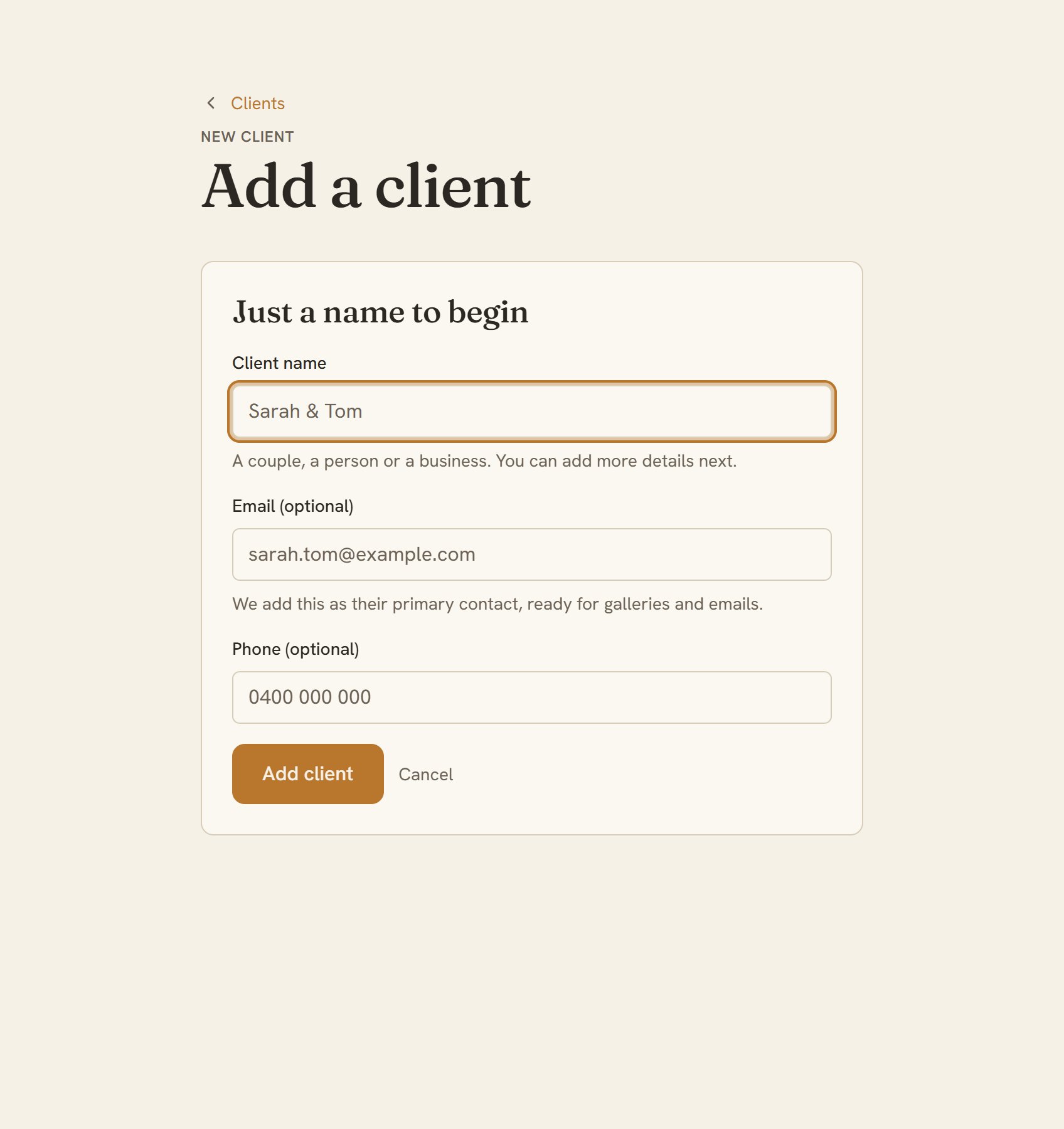
- Open the visitor-email CSVs you downloaded and pick out the people you're still working with: current clients, not one-off gallery viewers. Add each one in Tellisto with whatever details you've got from your own records. Add a client
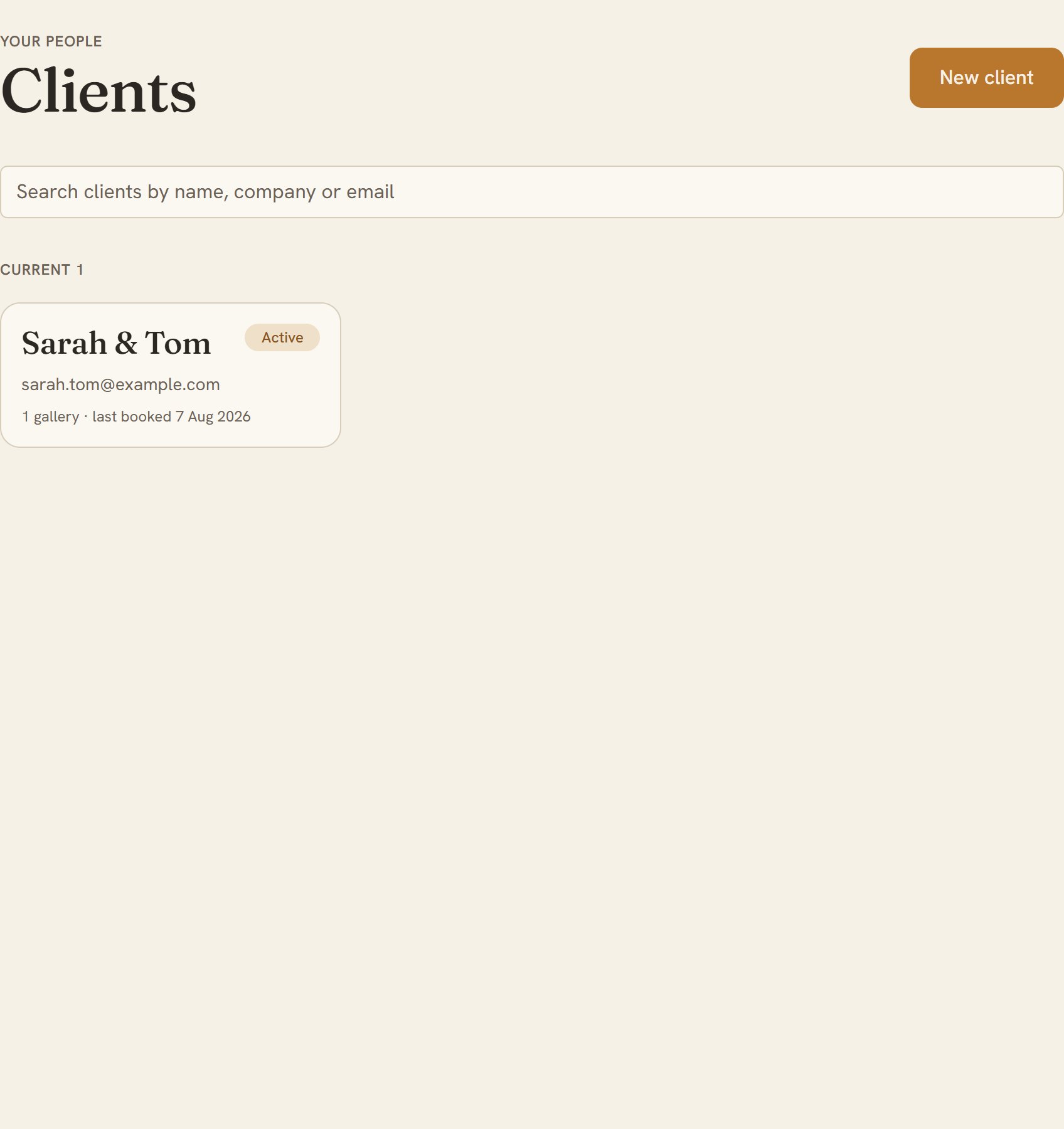
- Now check it. Open your Clients list and confirm the people you rebuilt galleries for above are all there, each with a way to reach them. Open your Clients list
Step 4 of 4 · 5 min
Keep the archive, then wind Pic-Time down
Your full photo and order history saved in your own storage, before any Pic-Time storage limit can delete it.
- Put the photo ZIPs, visitor-email CSVs, order CSVs, and price list somewhere safe: a backup drive, Google Drive, Dropbox. Do this before you touch your plan or subscription.
- Downgrading or cancelling triggers storage limits rather than an instant wipe, but the deadlines are short. Drop to a lower plan and your storage cap shrinks straight away, down to as little as 3 GB on the free plan if your account is more than three months old. You get a 45-day grace period before anything's deleted, and when it is, your oldest galleries go first. Free-plan galleries also get marked for deletion after 60 days of inactivity, with a 7-day countdown once that starts. Finish every download above before you change your plan, not after.
- Once you've confirmed everything downloaded and opens properly, cancel or downgrade from Settings → Plans & Billing.