Moving from Pixieset: export your data and switch
Download the galleries your clients still open, plus your contacts and payment history, from Pixieset. Then set up your current work in Tellisto.
4 things to set up · about 70 minutes all up
Skip to the setup ↓Still deciding? Read how Tellisto compares to Pixieset first. This page is the how-to for once you have.
The safe order for moving across, in 36 seconds.
What this does
Pixieset lets you download your gallery photos one collection at a time, your Studio Manager contacts as a CSV, and your payment history as a spreadsheet. Sessions, contracts and email templates don’t export, so you copy those out by hand. Whether you can download original-resolution files depends on your plan, so check that before you assume you’re getting full-size files back.
The guide moves the galleries your clients use first, then your active contacts. Everything else stays in an archive you keep rather than re-import. Tellisto has a CSV contacts import (Clients → Import) that recognises a Pixieset export directly, so you don’t have to add contacts by hand. Your photos go in through the same drag-and-drop uploader you’ll use for every new gallery. Cancel Pixieset last, once every download has finished and opens cleanly.
Set it up
These steps describe Pixieset as it was in July 2026. Please check their current help pages before you cancel, downgrade or delete anything.
Step 1 of 4 · 30 min
Get your photos out of Pixieset
Every gallery your clients still open, downloaded to your own computer with your contacts and payment history.
- Start with the galleries clients still use, not your whole archive. Open each collection, click the download icon (top-right on desktop, the three-dot menu on mobile), enter your email, tick the collection, and choose a destination: your device, Google Drive, or Dropbox. Pixieset downloads one collection at a time, so the more live galleries you're carrying, the longer this takes.
- Choose the biggest size you can. Original Size is only available on upgraded Client Gallery or Suite plans; lower tiers cap out at 3600px. If your own photo archive already has the originals, export from there instead of re-downloading from Pixieset: it's faster and doesn't touch your plan's storage limit.
- Export your contacts. In Studio Manager, open Contacts, click Actions → Export Contacts, choose which contact types you want (Clients, Leads, or both), and export to CSV.
- Export your payment history for your records. Open Payments → Transactions and click Export.
- Sessions, contracts, and email templates don't export. Pixieset has no export path for any of them. Open the ones you actually use and copy the details you need into a document before you move on.
Step 2 of 4 · 20 min
Rebuild your live galleries in Tellisto
The galleries your clients are opening now, live again in Tellisto with their photos in place.
- Create a gallery for each collection you brought across, starting with the one clients are asking about right now. Create a gallery
- Unzip the download and drag the whole folder into the uploader. It's a proper bulk upload: files go up in parallel and resume if your connection drops, so a few hundred photos take one drag, not one click per file. A bigger gallery just takes longer to upload, the same way it took longer to download.
- Rebuild the galleries clients still open first, not the full archive. A wedding from three years ago that nobody's asked about can wait; this month's shoot can't.
Step 3 of 4 · 15 min
Bring your people across
The clients you're working with now, in Tellisto with a way to reach each of them.
- Import the contacts file you just exported. In Tellisto, open Clients → Import, choose Pixieset Studio Manager as the source, check the columns line up, look over the preview and confirm. Names, emails and phone numbers come across in one go. Pixieset marks each contact as a client or a lead, so your leads come in as leads, with no email sent to them. Only contacts are imported, so bookings and invoices stay in your export files. Import contacts
- Leads and past clients you're not actively serving can stay in the CSV for now; you can add them later if one of them books again.
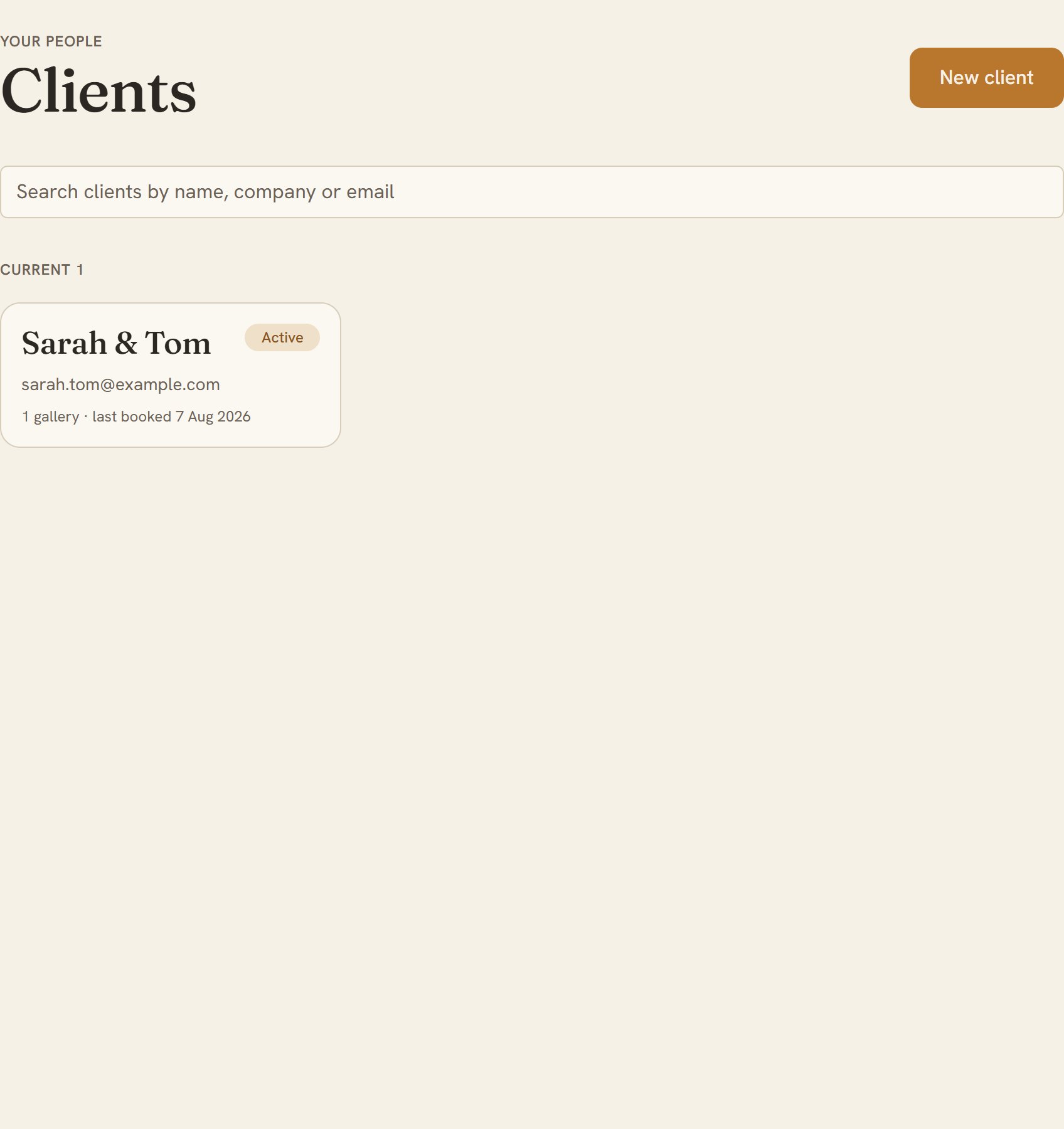
- Check it. Open your Clients list and look for everyone you're working with this month, each with an email or phone number. Open your Clients list
Step 4 of 4 · 5 min
Keep the archive, then wind Pixieset down
Your full history saved in your own storage, with no surprise Pixieset bill and no lost files.
- Put the gallery ZIPs, contacts CSV, and payments CSV somewhere safe: a backup drive, Google Drive, Dropbox. You'll rarely open them, but the day a client asks for a file from two years ago, you'll have it.
- Finish your downloads before you touch your plan. Downgrading to Pixieset's free plan is blocked while you're over its 3 GB cap, and Pixieset doesn't publish how long it keeps your files after cancellation. Treat cancelling as the moment access ends, not a grace period.
- Cancel from your Pixieset account settings once every ZIP has downloaded and opens cleanly.